Current Values Report
The Current Values report retrieves a single value for each specified point. The value can be the point’s current value or a historical value.
To retrieve a value from the VHS, you must specify the data timestamp using the Time column on the Tags page. For historical data, the system will return the value closest to without exceeding the specified timestamp.
|
Current Values |
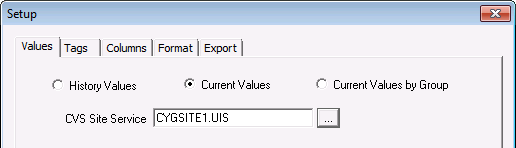
To Set Up a Current Value Service Report
- Open CygNet Excel Export.
- Click the Configure button.
- On the Values page, enable Current Values.
- Select the CVS Site Service of the current value service that contains the data. Any type of current value service can be used (UIS, HSS, SVCMON, OPCIS).
- On the Tags page, select the points.
Note: Optionally, to retrieve a historical value instead of a current value, double-click the Time cell for the item and enter the timestamp in the Value at Time field. The value closest to without exceeding the timestamp will be returned.
- On the Columns page, select the point properties to be included in the report.
- On the Format page, set the report format.
- On the Export page, specify the name of the .csv file data will be written to and set the file extension option.
- Click OK to exit the Setup box.
- Click Get CygNet Data to run the report.
- Save the file.

